Posts

Showing posts with the label Windows

Delivery Optimization in Microsoft Endpoint Configuration Manager (ConfigMgr)

Image
Delivery Optimization can be a powerful tool to help manage your content. However, getting things configured can be confusing and daunting. Here I've broken out the steps to get you going. Client Settings 1.     BranchCache and PeerCache. a.    First, create a new Custom Device Settings and check the box for “Client Cache Settings” and “Delivery Optimization”. b.       BranchCache . To enable BranchCache on clients, set “Configure BranchCache” and “Enable BranchCache” to Yes and set the “Maximum BranchCache cache size (percentage of disk)”. (Default is 10). c.        PeerCache . To make the client a SuperPeer (PeerCache Source), set “Enable as peer cache source” to “Yes”. Note: SuperPeers should be clients that are newer (faster), always on devices, that are hard wired, and have plenty of hard drive space. Note: Build a WQL query to create and maintain a collection of SuperPeers. I.E., CPU, memory, free space, etc....

WSUS Products

Image
If you are trying to decide what Products to include in your WSUS settings, this is the article for you.  ConfigMgr and WSUS currently have a dozen Windows 10 “products” listed but the descriptions are lacking. Windows 10 and Later Drivers:  These are drivers that will be offered to all builds of Windows 10 all the time, excluding upgrade scenarios (i.e., via Orchestrator, DSM, or Device Manager). They will not download during a Dynamic Update (i.e., Windows 10 upgrading itself from build 1511 to 1607).    They should only include KBs for the current Win10 version. . Windows 10 and Later Upgrade & Servicing Drivers:  These are drivers that are offered in all Win10 scenarios (i.e., via Orchestrator, DSM, Device Manager, or during DU). They may include some KBs later win10 version and enable current win10 version to upgrade. . Windows 10 Anniversary Update and Later Servicing Drivers:   These drivers apply only to Window...

Windows Language Packs - Some Translations Not Complete

Be sure to re-install the inbox apps if you want them to be translated on the first launch. See: https://www.powershellgallery.com/packages/Windows365LanguagesInstaller/1.0.0.2/Content/Windows365LanguagesInstaller.ps1 If using a Task Sequence, the following results in a machine that is fully translated on the first use (you don’t need to use both LP and LXP). Install LP: dism.exe /Image:%OSDTargetSystemDrive%\ /ScratchDir:%OSDTargetSystemDrive%\Windows\Temp /Add-Package /PackagePath:".\Microsoft-Windows-Client-Language-Pack_x64_%Language%.cab"  Install LXP: powershell.exe -executionpolicy bypass -command "Add-AppxProvisionedPackage -Path %OSDTargetSystemDrive%\ -PackagePath .\LanguageExperiencePack.%Language%.Neutral.appx" -LicensePath ".\License.xml" Install FoD: powershell.exe -executionpolicy bypass -command $cabs = Get-ChildItem -Filter "*.cab"; foreach ($cab in $cabs) { Add-WindowsPackage -PackagePath "$($cab.FullName)" -NoRestar...

Driver Verifier Manager

Image
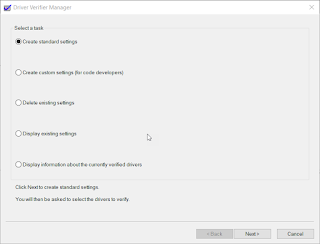
Have you ever had problems with a "bad" driver? You get occassional BSODs and maybe even lost some work? The reason could be that you have unsigned/unverified drivers. Luckily, there is a built-in tool for verifying drivers! And, unlike many things Microsoft, it is actually named intuitively! VERIFIER! So, how do we use it? Well, that is the easy part. You launch it, click "yes" to elevate it, click Next - Next and it will tell you if you have any unsigned drivers. It is that easy! Once you indentify the unsigned driver(s), you only need to go visit the device manufacturer website and download the latest, signed drivers. Another reason a driver may crash (or cause a BSOD) is because it was not made for the version of Windows you are on. Luckily, verifier can also help with that! Launch verifier, click Next, Next and hopefully you'll get a message that no unsigned drivers were found. If so, then the next thing you'll want to do is scan for ...

C Drive Low on Space? Need to move your Outlook OST? Don't! Create a symbolic link instead!

Image
I have my HD partitioned into a C: and D:. C: is about 100gb and the plan was to use it for the OS and Office. D: is about 900gb and I use it for everything else – downloads, OneDrive, etc. I noticed my C: drive was running out of space and the culprit was my Outlook OST!! My OST was about 48gb!! (I like to download the maximum amount so searches go faster.) I tried to move the OST to D: using the “Account Settings...” and even editing the registry, ut Outlook was not having it. It kept recreating the OST on C: and ignoring the OST file I had moved. So, I decided to play a trick on Outlook. First, I created a folder on D: called Outlook. Next, I closed Outlook and *MOVED* my OST from C:\Users\ \AppData\Local\Microsoft\Outlook\ to D:\Outlook\ Now for the magic. I created a symbolic link to the OST file!! (You can also use the junction tool from Sysinternals.) From a CMD prompt: mklink C:\Users\ \AppData\Local\Microsoft\Outlook\emailid@contoso.com.ost D:\Outlook\emailid@contoso...

ConfigMgr Configuration Item - Be careful!

Image
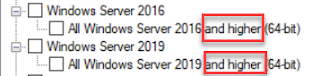
When configuring an Windows Client and Server CI, be careful when choosing the OS that will assess the CI for compliance! Note that for Windows Server 2016 and Windows Server 2019 the phrasing says “and higher” after them. What this means is if you choose Windows Server 2016, the CI will apply to *both* Server 2016 *and* Server 2019 (even if you don’t choose “Windows Server 2019”)! As you can imagine, this can cause problems if you are wanting the CI to only apply to Server 2016! You can get around this by using the option “ Specify the version of Windows manually ”. However, that option does not appear if you choose “ This configuration item contains application settings ” under “ Windows Desktops and Servers (custom) ”. The only thing you can choose is “ This application runs only on computers that have 64-bit hardware ”. If you do not choose the "This configuration item contains application settings" you could then utilize a script to make sure it only appli...

Windows 7 Clients Not Installing Updates

Image
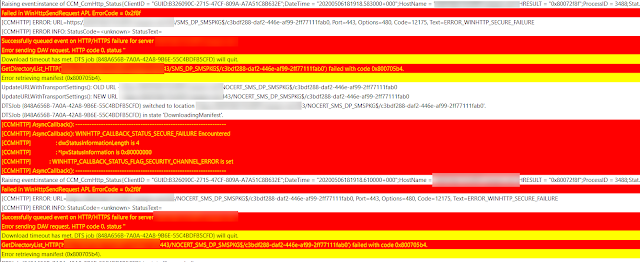
Ran across some Windows 7 systems that were not getting updates. I started down the normal troubleshooting path by looking at various logs. The logs mostly looked good. However, the datatransferservice.log was lit up like a Christmas tree! The log was full of all kinds of HTTP errors but these two stood out: WINHTTP_CALLBACK_STATUS_SECURE_FAILURE WINHTTP_CALLBACK_STATUS_FLAG_SECURITY_CHANNEL_ERROR After researching a bunch of IIS sites including this one , I finally narrowed it down to something with TLS. Turns out they had disabled TLS 1.0 on the MP but the client (Windows 7 SP1) did not support TLS 1.2. In order for a Windows 7 client to support TLS 1.2, you have to upgrade .NET and apply KB3140245 . This patch appears to be standalone and not part of any other cumulative. It can be found in the Microsoft Catalog . After installing the patch and rebooting, the client was then able to communicate with the MP and get the patches it needed. Good luck!

Unable to open Start or Search after Window 7 to Windows 10 1809 Upgrade

Image
This one was a real head scratcher. After upgrading from Windows 7 to Windows 10 1809, you could not open the Start Menu. When you would click on it, nothing would happen. You could also not perform a search. I saw in the System event log: "The server Microsoft.Windows.ShellExperienceHost _10.0.17763.1_neutral_neutral_cw5n1h2txyewy! App did not register with DCOM within the required timeout." about every 30 seconds. I noticed the same thing with Cortana. and "The server Microsoft.Windows.Cortana _1.11.6.17763_neutral_neutral_cw5n1h2txyewy!CortanaUI.AppXfbn8w4s0jbk3tjevpcn9kaxerc6rby8k.mca did not register with DCOM within the required timeout." I captured a procmon trace and found: Both ShellExperienceHost.exe and SearchUI.exe exit with an error (-1073741790 which is Access Denied) as soon as they try to load sysfer.dll (part of Symantec Endpoint Protection). See https://support.symantec.com/us/en/article.TECH252314.html Evidently, sysf...

App-V 5.1 Sequencer: "time out has expired or operation has not been completed"

If you run across this error in the App-V Sequencer check the Event Log for AppV - Sequencer - Operational. You will probably find that the sequencer was not stopping a service (in my case it was the windows update service). It will show as "stopping". Set the service to disabled and then reboot. That should fix it.

Windows Drivers - Stored Locally on PC

If you go here on a Windows box: C:\Windows\System32\DriverStore\FileRepository You will see a ton of folders…each folder corresponds to a driver. Inside each folder is the inf file and any other required files for the driver. You can sort them by date to see which drivers were just installed. Windows saves all drivers you add here. Find the folder that contains the driver you need and copy that folder to your driver repository… name it something descriptive and include it in your driver package. Windows will find and use that driver during its plug n play search. You can effectively decrease your driver packages size by 90%!