Posts

Showing posts with the label Task Sequence

Windows 7 Clients Not Installing Updates
Image
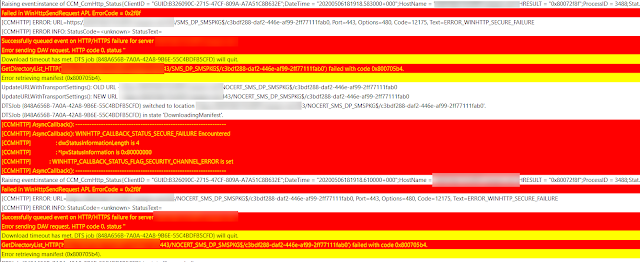
Ran across some Windows 7 systems that were not getting updates. I started down the normal troubleshooting path by looking at various logs. The logs mostly looked good. However, the datatransferservice.log was lit up like a Christmas tree! The log was full of all kinds of HTTP errors but these two stood out: WINHTTP_CALLBACK_STATUS_SECURE_FAILURE WINHTTP_CALLBACK_STATUS_FLAG_SECURITY_CHANNEL_ERROR After researching a bunch of IIS sites including this one , I finally narrowed it down to something with TLS. Turns out they had disabled TLS 1.0 on the MP but the client (Windows 7 SP1) did not support TLS 1.2. In order for a Windows 7 client to support TLS 1.2, you have to upgrade .NET and apply KB3140245 . This patch appears to be standalone and not part of any other cumulative. It can be found in the Microsoft Catalog . After installing the patch and rebooting, the client was then able to communicate with the MP and get the patches it needed. Good luck!


ConfigMgr Task Sequence Fails Immediately with "The software could not be found on any servers at this time."

Image
Happy Monday, fellow ConfigMgr administrators! I ran across a pretty difficult Task Sequence last week that had me scratching my head. It involved a pretty complex Task Sequence that contained over 50 applications. The Task Sequence would fail within 5 seconds upon launch from the Software Center with an message of  “The software could not be found on any servers at this time.” No error code was given. I ended up removing all the apps from the TS and adding them back one at a time. Many of the applications had at least one supersedence, dependencies and dependency chaining. It turned out there was one particular superseded application that  was missing its content!! Yeah, that would do it. Unfortunately, ConfigMgr did not log what application or package ID had its content missing so it was a crap shoot trying to find it.  I really feel like there should have been a log somewhere that gave this information. This is the only log info...

Windows 10 Upgrade - Panther Logs - Locations

Where the heck is the #($*@(*#$# panther logs? Logfile location Description $windows.~bt\Sources\Panther Log location before Setup can access the drive. $windows.~bt\Sources\Rollback Log location when Setup rolls back in the event of a fatal error. %WINDIR%\Panther Log location of Setup actions after disk configuration. %WINDIR%\Inf\Setupapi .log Used to log Plug and Play device installations. %WINDIR%\Memory.dmp Location of memory dump from bug checks. %WINDIR%\Minidump.dmp Location of log minidumps from bug checks. %WINDIR%\System32\Sysprep\Panther Location of Sysprep logs.

Unable to open Start or Search after Window 7 to Windows 10 1809 Upgrade

Image
This one was a real head scratcher. After upgrading from Windows 7 to Windows 10 1809, you could not open the Start Menu. When you would click on it, nothing would happen. You could also not perform a search. I saw in the System event log: "The server Microsoft.Windows.ShellExperienceHost _10.0.17763.1_neutral_neutral_cw5n1h2txyewy! App did not register with DCOM within the required timeout." about every 30 seconds. I noticed the same thing with Cortana. and "The server Microsoft.Windows.Cortana _1.11.6.17763_neutral_neutral_cw5n1h2txyewy!CortanaUI.AppXfbn8w4s0jbk3tjevpcn9kaxerc6rby8k.mca did not register with DCOM within the required timeout." I captured a procmon trace and found: Both ShellExperienceHost.exe and SearchUI.exe exit with an error (-1073741790 which is Access Denied) as soon as they try to load sysfer.dll (part of Symantec Endpoint Protection). See https://support.symantec.com/us/en/article.TECH252314.html Evidently, sysf...

Windows Drivers - Stored Locally on PC

If you go here on a Windows box: C:\Windows\System32\DriverStore\FileRepository You will see a ton of folders…each folder corresponds to a driver. Inside each folder is the inf file and any other required files for the driver. You can sort them by date to see which drivers were just installed. Windows saves all drivers you add here. Find the folder that contains the driver you need and copy that folder to your driver repository… name it something descriptive and include it in your driver package. Windows will find and use that driver during its plug n play search. You can effectively decrease your driver packages size by 90%!