Posts

Showing posts with the label Windows 10

Delivery Optimization in Microsoft Endpoint Configuration Manager (ConfigMgr)

Image
Delivery Optimization can be a powerful tool to help manage your content. However, getting things configured can be confusing and daunting. Here I've broken out the steps to get you going. Client Settings 1.     BranchCache and PeerCache. a.    First, create a new Custom Device Settings and check the box for “Client Cache Settings” and “Delivery Optimization”. b.       BranchCache . To enable BranchCache on clients, set “Configure BranchCache” and “Enable BranchCache” to Yes and set the “Maximum BranchCache cache size (percentage of disk)”. (Default is 10). c.        PeerCache . To make the client a SuperPeer (PeerCache Source), set “Enable as peer cache source” to “Yes”. Note: SuperPeers should be clients that are newer (faster), always on devices, that are hard wired, and have plenty of hard drive space. Note: Build a WQL query to create and maintain a collection of SuperPeers. I.E., CPU, memory, free space, etc....

WSUS Products

Image
If you are trying to decide what Products to include in your WSUS settings, this is the article for you.  ConfigMgr and WSUS currently have a dozen Windows 10 “products” listed but the descriptions are lacking. Windows 10 and Later Drivers:  These are drivers that will be offered to all builds of Windows 10 all the time, excluding upgrade scenarios (i.e., via Orchestrator, DSM, or Device Manager). They will not download during a Dynamic Update (i.e., Windows 10 upgrading itself from build 1511 to 1607).    They should only include KBs for the current Win10 version. . Windows 10 and Later Upgrade & Servicing Drivers:  These are drivers that are offered in all Win10 scenarios (i.e., via Orchestrator, DSM, Device Manager, or during DU). They may include some KBs later win10 version and enable current win10 version to upgrade. . Windows 10 Anniversary Update and Later Servicing Drivers:   These drivers apply only to Window...

Windows Language Packs - Some Translations Not Complete

Be sure to re-install the inbox apps if you want them to be translated on the first launch. See: https://www.powershellgallery.com/packages/Windows365LanguagesInstaller/1.0.0.2/Content/Windows365LanguagesInstaller.ps1 If using a Task Sequence, the following results in a machine that is fully translated on the first use (you don’t need to use both LP and LXP). Install LP: dism.exe /Image:%OSDTargetSystemDrive%\ /ScratchDir:%OSDTargetSystemDrive%\Windows\Temp /Add-Package /PackagePath:".\Microsoft-Windows-Client-Language-Pack_x64_%Language%.cab"  Install LXP: powershell.exe -executionpolicy bypass -command "Add-AppxProvisionedPackage -Path %OSDTargetSystemDrive%\ -PackagePath .\LanguageExperiencePack.%Language%.Neutral.appx" -LicensePath ".\License.xml" Install FoD: powershell.exe -executionpolicy bypass -command $cabs = Get-ChildItem -Filter "*.cab"; foreach ($cab in $cabs) { Add-WindowsPackage -PackagePath "$($cab.FullName)" -NoRestar...

Driver Verifier Manager

Image
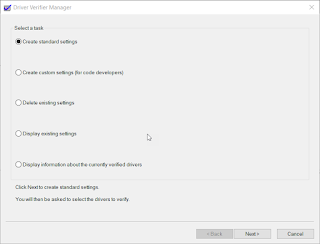
Have you ever had problems with a "bad" driver? You get occassional BSODs and maybe even lost some work? The reason could be that you have unsigned/unverified drivers. Luckily, there is a built-in tool for verifying drivers! And, unlike many things Microsoft, it is actually named intuitively! VERIFIER! So, how do we use it? Well, that is the easy part. You launch it, click "yes" to elevate it, click Next - Next and it will tell you if you have any unsigned drivers. It is that easy! Once you indentify the unsigned driver(s), you only need to go visit the device manufacturer website and download the latest, signed drivers. Another reason a driver may crash (or cause a BSOD) is because it was not made for the version of Windows you are on. Luckily, verifier can also help with that! Launch verifier, click Next, Next and hopefully you'll get a message that no unsigned drivers were found. If so, then the next thing you'll want to do is scan for ...

Windows 10 Upgrade - Panther Logs - Locations

Where the heck is the #($*@(*#$# panther logs? Logfile location Description $windows.~bt\Sources\Panther Log location before Setup can access the drive. $windows.~bt\Sources\Rollback Log location when Setup rolls back in the event of a fatal error. %WINDIR%\Panther Log location of Setup actions after disk configuration. %WINDIR%\Inf\Setupapi .log Used to log Plug and Play device installations. %WINDIR%\Memory.dmp Location of memory dump from bug checks. %WINDIR%\Minidump.dmp Location of log minidumps from bug checks. %WINDIR%\System32\Sysprep\Panther Location of Sysprep logs.

Unable to open Start or Search after Window 7 to Windows 10 1809 Upgrade

Image
This one was a real head scratcher. After upgrading from Windows 7 to Windows 10 1809, you could not open the Start Menu. When you would click on it, nothing would happen. You could also not perform a search. I saw in the System event log: "The server Microsoft.Windows.ShellExperienceHost _10.0.17763.1_neutral_neutral_cw5n1h2txyewy! App did not register with DCOM within the required timeout." about every 30 seconds. I noticed the same thing with Cortana. and "The server Microsoft.Windows.Cortana _1.11.6.17763_neutral_neutral_cw5n1h2txyewy!CortanaUI.AppXfbn8w4s0jbk3tjevpcn9kaxerc6rby8k.mca did not register with DCOM within the required timeout." I captured a procmon trace and found: Both ShellExperienceHost.exe and SearchUI.exe exit with an error (-1073741790 which is Access Denied) as soon as they try to load sysfer.dll (part of Symantec Endpoint Protection). See https://support.symantec.com/us/en/article.TECH252314.html Evidently, sysf...

App-V 5.1 Sequencer: "time out has expired or operation has not been completed"

If you run across this error in the App-V Sequencer check the Event Log for AppV - Sequencer - Operational. You will probably find that the sequencer was not stopping a service (in my case it was the windows update service). It will show as "stopping". Set the service to disabled and then reboot. That should fix it.