Posts

Fix: The Group Policy Client Service Failed The Logon (Server 2008 R2)

1.) Login to the machine with the local administrator account or connect remotely from another server. 2.) Delete the profile for the user that's having the problem, i.e. C:\Users\User01 3.) Run Regedit, and remove the profile from HKLM>Software>Microsoft>Windows NT>CurrentVersion>Profile List>(SID) (you can right click on Profile List and do a search for the user name, i.e. User01. 4.) Once found delete the entire KEY for the user. 5.) Double check to ensure it's removed from System Properties>Advanced System Settings>Advanced TAB>User Profiles (Settings...) button> If you see the user in there, delete it too. 6.) Logoff as Local Admin and reboot. (Reboot not required but you may want to to be sure). 7.) Login with domain username.
IE11 opens Blank Page when you click a link.

Saw this just today. This command fixed it. regsvr32 "%programfiles(x86)%\internet explorer\ieproxy.dll"

Importing Microsoft Hotfixes into SCUP 2011

Image
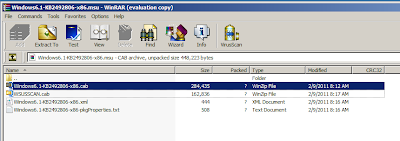
Extract only the .CAB file from the MSU (using WinRAR). In Windows 7 run iexpress.exe. Click Start and in the search box type "Iexpress.exe"                           Click Next on the “Welcome to IExpress 2.0” screen. Click Next on the “Package Purpose” Screen.   On the "Package Title" screen, name the package. I use the name of the CAB – i.e. :   Click Next on “Confirmation Prompt” & “License Agreement” screens. Click “Add” on the “Packaged Files” Screen and browse to the .CAB file you extracted earlier. Make note of the PATH where that .CAB file is located. You will need that. Click Next. On the “Install Program to Launch” screen you will put in the following string in the box next to "Install Program": dism.exe /online /add-package:”<PATH TO THE CAB>Windows6.1-KB2547244-x86.cab” /norestart Click Next. Click Next on the “Show Window”...

AppV 4.6 Troubleshooting

APP-V Client Troubleshooting There are links at the bottom for more troubleshooting. Note - If there is a command line listed you can try to run that instead of using the gui, but you need to know the application GUID or complete name where needed. 1st things first The first thing you should always check is the log: Win7 C:\ProgramData\Microsoft\Application Virtualization Client\sftlog.txt WinXP C:\Documents and Settings\All Users\Application Data\Microsoft\Application Virtualization Client\sftlog.txt They will tell you lots of information. You can also change the logging level to get more information. Once you’ve checked the log if there is nothing obvious in there. You should repair the application. How to repair an application Repair - When you repair an application, you remove any custom user settings and restore the default settings. This action does not change or delete shortcuts or file type associations, and it does not remove the application from cache. ...

Configuring Outlook 2010 for Maximum Performance

Turn on Cached Exchange Mode 1. From Outlook – On the Tools menu, click “E-Mail Accounts”, click “View or change existing e-mail accounts”, and then click “Next”. 2. In the Outlook processes e-mail for these accounts in the following order list, click the Exchange Server e-mail account, and then click “Change”. 3. Under Microsoft Exchange Server, select the “Use Cached Exchange Mode” check box. Disable all Send/Receive Settings 1. From Outlook – On the Tools menu, point to Send/Receive Settings, and then click Define Send/Receive Groups. 2. Under “Setting for group “All Accounts” uncheck all the boxes. 3. Click the “Edit…” button. 4. Uncheck the box for “Include the selected account in this group”. 5. Click “OK” and “Close” 6. Next, click Disable Scheduled Send/Receive 7. Quit Outlook, and then restart Outlook. Further Troubleshooting If Outlook performance does not improve please check the following: 1. Check to see if any of their email folders (especially public folder favorites) co...

Windows Drivers - Stored Locally on PC

If you go here on a Windows box: C:\Windows\System32\DriverStore\FileRepository You will see a ton of folders…each folder corresponds to a driver. Inside each folder is the inf file and any other required files for the driver. You can sort them by date to see which drivers were just installed. Windows saves all drivers you add here. Find the folder that contains the driver you need and copy that folder to your driver repository… name it something descriptive and include it in your driver package. Windows will find and use that driver during its plug n play search. You can effectively decrease your driver packages size by 90%!